

Projects
Projects allow you to organize work locations separately and enable collaborative work.
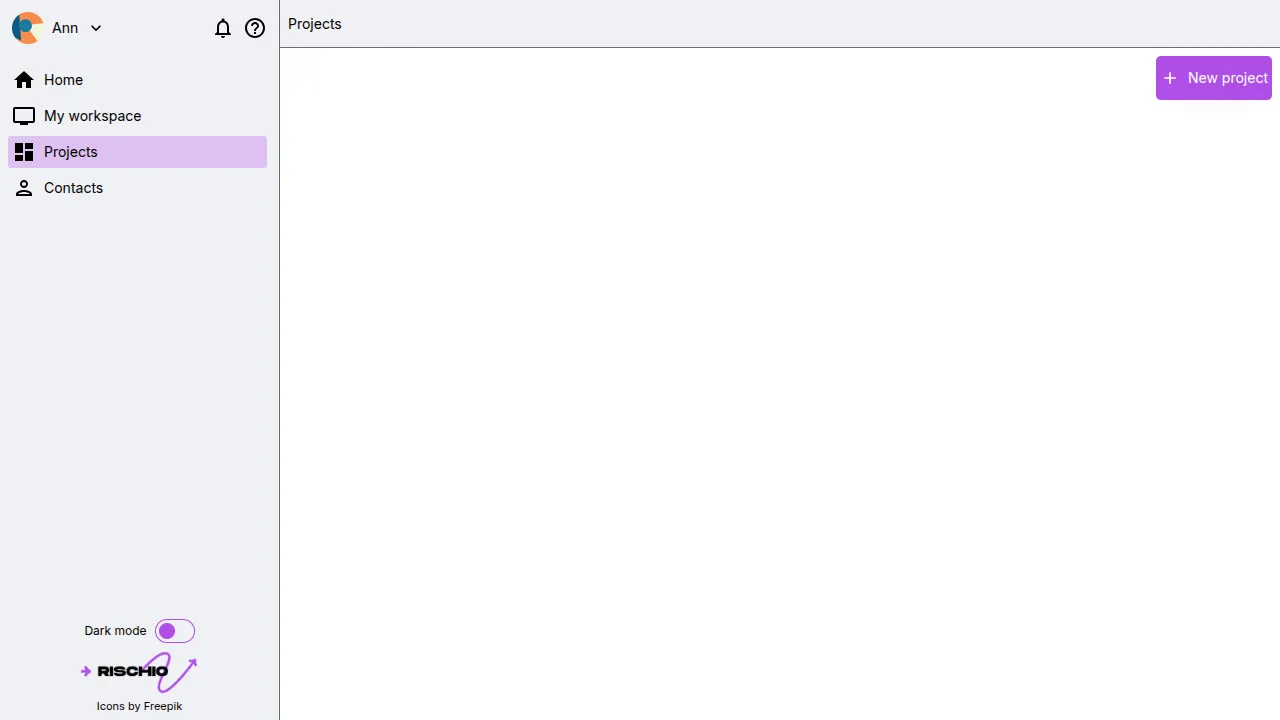
Access from the side menu
Section titled “Access from the side menu”In the side menu, click on Projects.
If you’ve already created a project, you’ll see a list of your own projects and the ones shared with you.
Creating a project
Section titled “Creating a project”Click the New project button. A pop-up window will appear asking for the following basic project information:
- Project name (required)
- Client (required)
- Description (optional)
- Color (required)
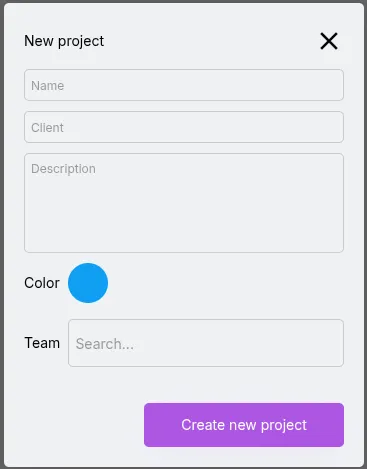
Once you’ve filled in the information, click the Create new project button. The project will appear in the list.
Accessing the project
Section titled “Accessing the project”To open the project you’re interested in, click on it. You’ll be taken to the Project View.
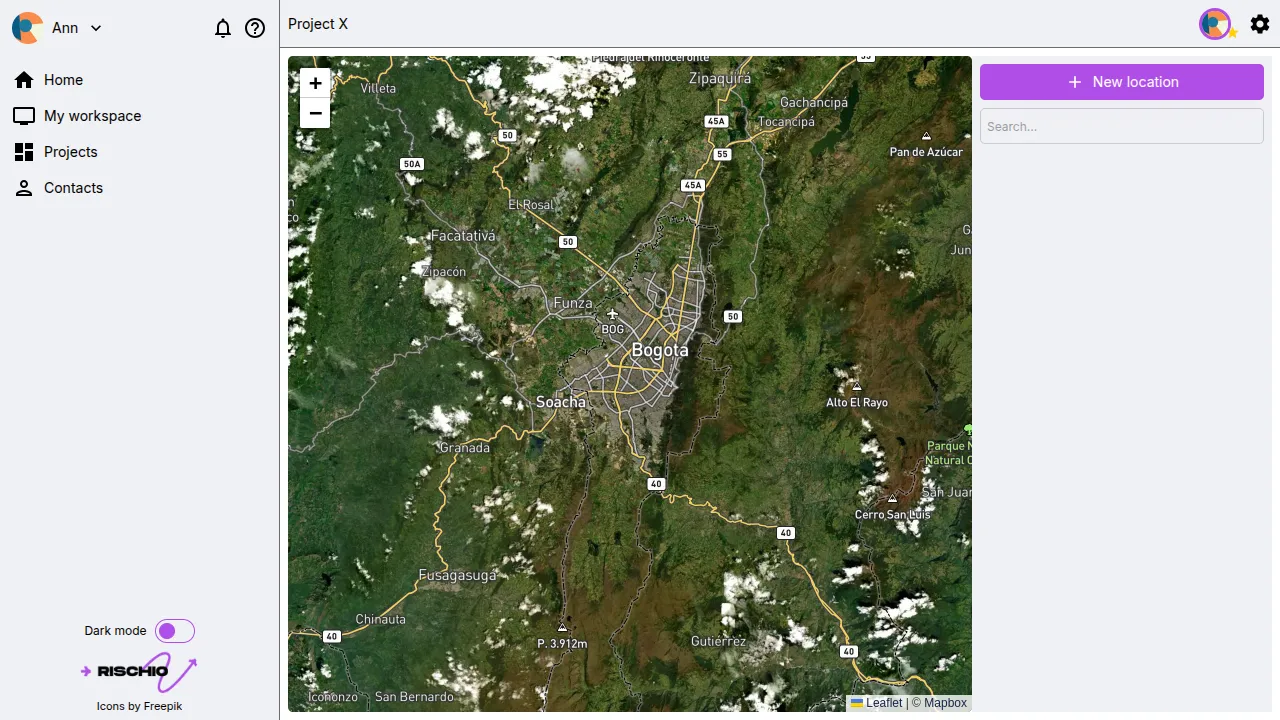
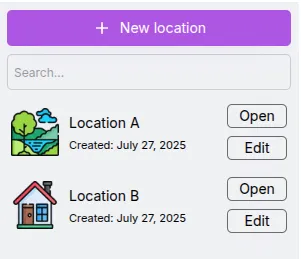
Work locations list
Section titled “Work locations list”The list displays all the created work locations. It includes a search bar to quickly filter them. You can also click on a work location to locate it on the map.
To access a work location, click Open. To edit it, click Edit.
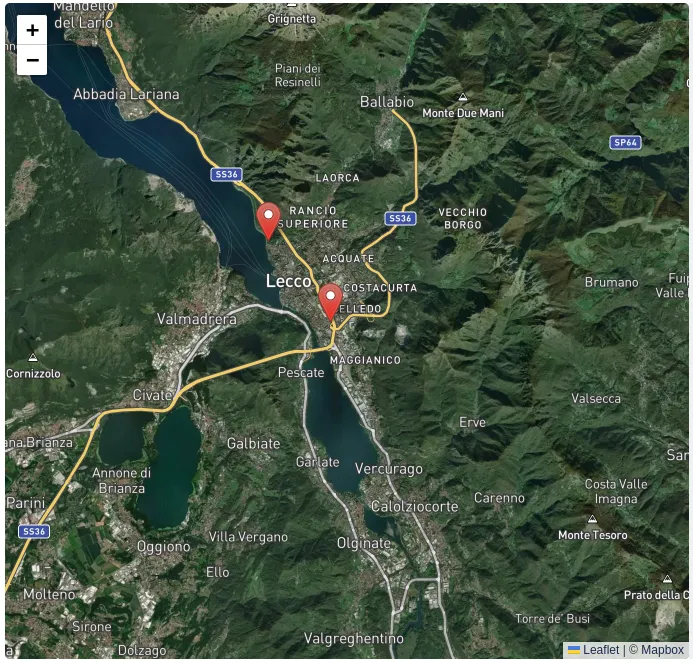
This map shows the georeferenced work locations. You can zoom in and out as needed. Additionally, you can click on any work location to highlight and identify it in the work location list.
Creating a work location
Section titled “Creating a work location”To create a new work location, click New work location. A pop-up window will appear asking for the following information:
- Work location name (required)
- Description (optional)
- Identification icon (required)
- Work location location, which you can set by clicking on the map in the pop-up window or by entering the geographic coordinates in the provided fields (required)
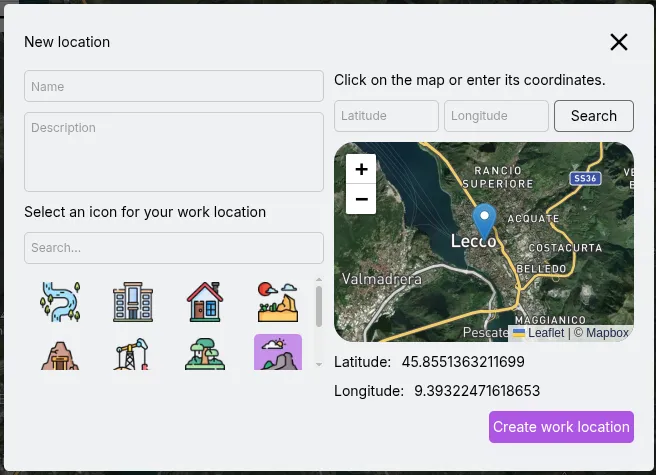
Once created, the work location will appear in both the list and the map.
Editing and deleting a work location
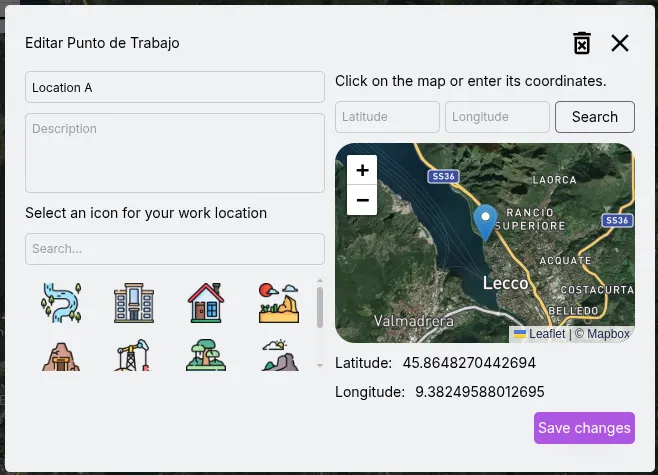
Section titled “Editing and deleting a work location”To edit or delete a work location, click the Edit button next to the corresponding item. A pop-up window will appear with the same options you saw when creating the location. After making changes, click Save changes.
To delete the work location, click the icon in the upper-right corner of the pop-up. You will be asked to confirm the deletion.
Editing and deleting the project
Section titled “Editing and deleting the project”In addition to the familiar interface, you’ll find a icon in the upper-right corner. Click on it to open a pop-up window where you can edit the project parameters.
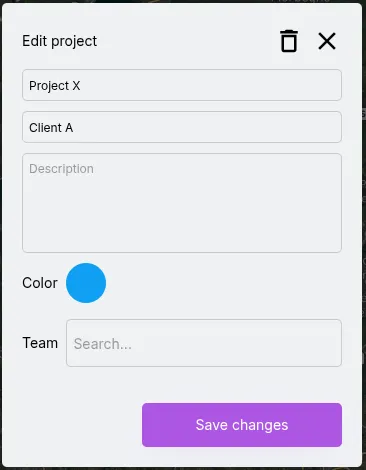
Only the project creator can access this pop-up window.
To delete a project, you must first manually delete each work location within the project. Once all work locations are removed, the Delete project button will be enabled. Clicking it will ask you to confirm the deletion.
Adding contacts to the project
Section titled “Adding contacts to the project”In the project edit pop-up, you’ll find the Team section. Here you can add collaborators who will be able to create, edit, and delete work locations.
In the Add members text field, type the name of the contact you want to add. Note that they must already be your contact, as explained in the Contacts section.
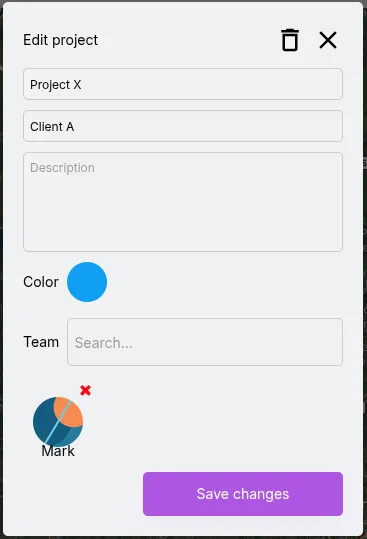
To remove a team member, simply click the icon next to their profile picture.