
Application
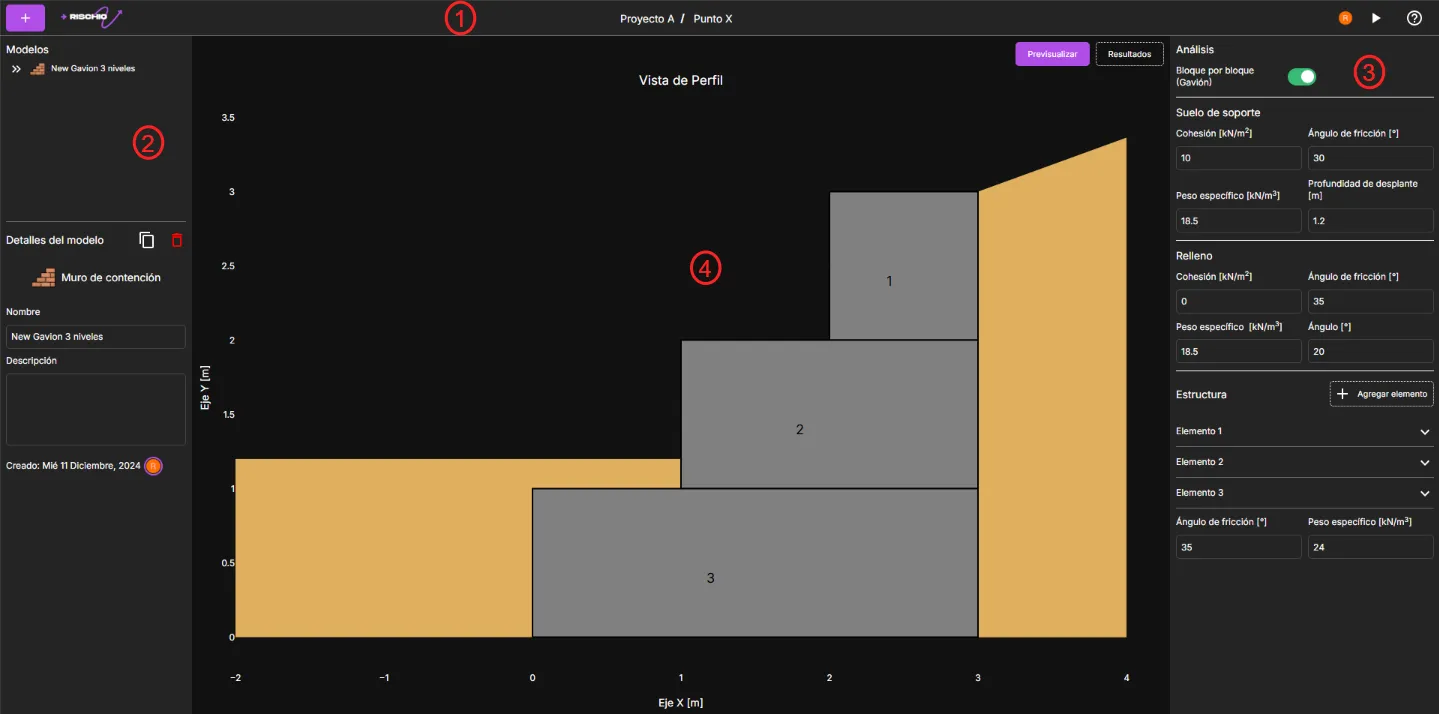
Through the application, you can access the contents of the work areas. Here, you’ll be able to create, edit, and collaborate on the engineering models required by your project.
In general, the application is divided into four sections:
- The top bar ①
- The left panel ②
- The right panel ③
- The viewer ④
Creating and selecting models
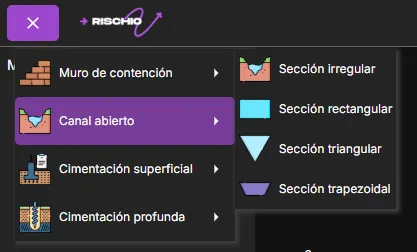
Section titled “Creating and selecting models”In the upper left corner, you’ll find the button. Clicking it will show you the list of available models in Rischio. Clicking on a model will display a list of fully editable templates that allow for agile model development.
Once you’ve selected the template that best fits your project, assign it a name and click Create model.
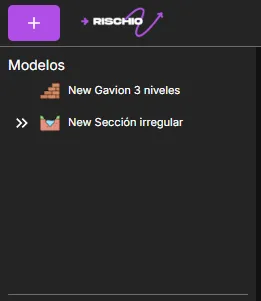
After creating the model, it will appear in the model list on the left panel. All models you create will be added there, and you can select them as needed.
Rename, Duplicate, and Delete Model
Section titled “Rename, Duplicate, and Delete Model”In the model list on the left panel, hovering over a model will reveal three options.

- - Rename Model: Click to enable editing. Type a new name and press enter or the button.
- - Duplicate Model: Automatically creates a copy of the model.
- - Delete Model: Displays a confirmation dialog to delete the model.
Model preview
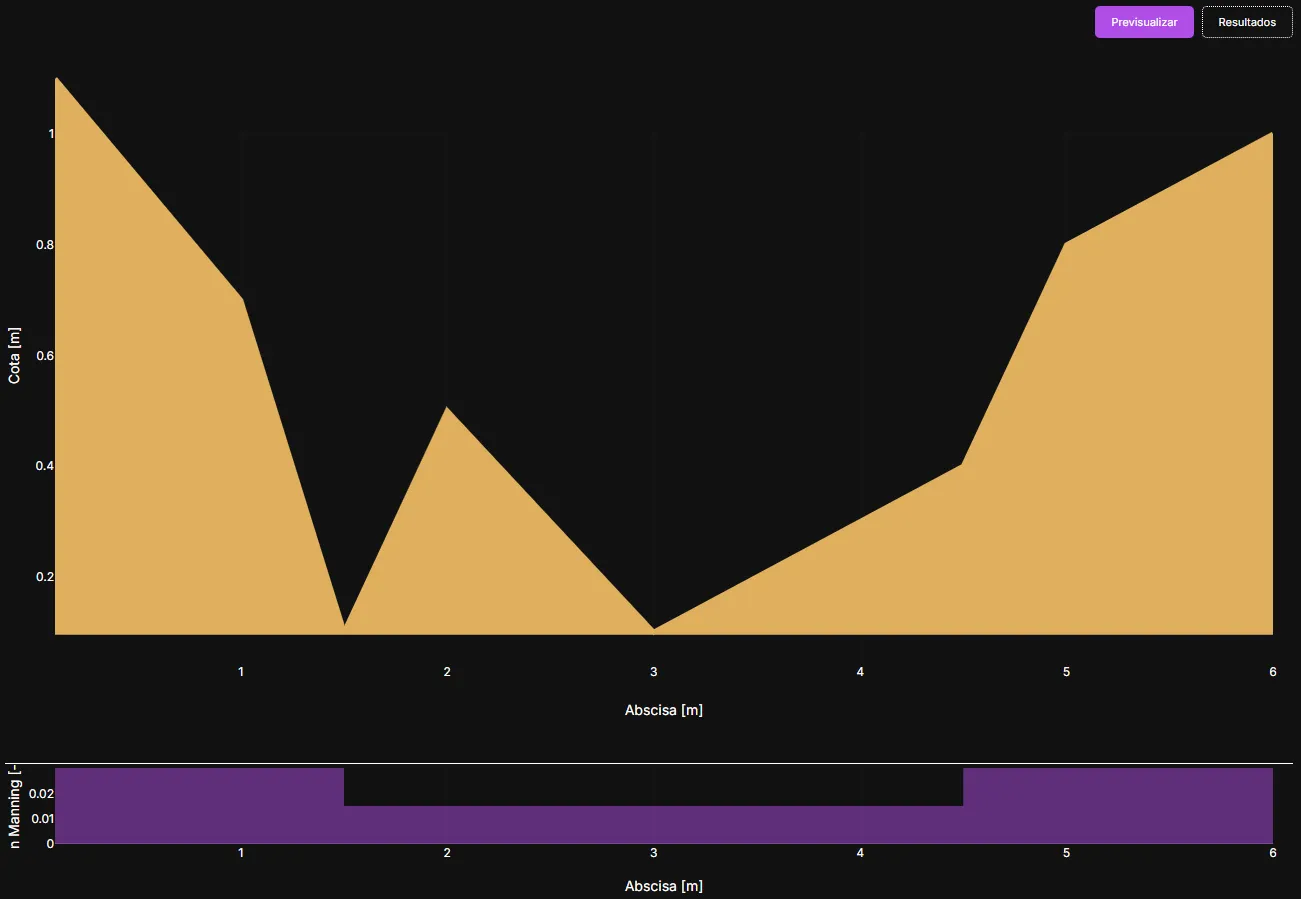
Section titled “Model preview”In the viewer, you can preview the active model. Make sure the Preview button is selected. A description of the preview is available in the help section for each model type.
Editing the model
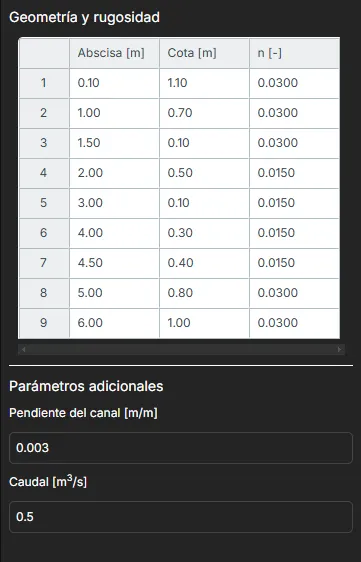
Section titled “Editing the model”To edit the model, go to the right panel. There you’ll find the various options and parameters for each model type. Parameter descriptions are available in the help section for each model type.
Running models
Section titled “Running models”To run the model, press the button located at the top of the right panel.
History
Section titled “History”If you ran a model and want to revert to a previous version, press the button to see the last five versions. Click the restore button to return to a previous version.
Model Verification
Section titled “Model Verification”The program performs some verifications before you are able to run it to minimize the risk of errors. When a model is valid, the validation indicator will show this icon: .
When the model has inconsistencies, the icon will be . You can click the icon to see more details about the issues.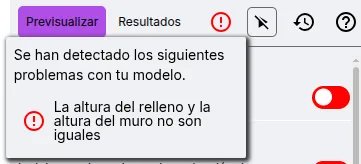
Result
Section titled “Result”Once the model runs, the view switches to Results. If you want to return to the model preview, press the Preview button.

The calculations are shown in multiple cards according to their focus.